102 - Editing content on the wiki
Editing Content
To edit the content on the site, use Obsidian with the Digital Garden community plugin to make and publish changes
Install Obsidian and Digital Garden
Download and install Obsidian
Open the Vault
- Open Obsidian
- Open an existing folder as a vault
- The folder is located here \\GVS-IT\Wiki-Site-Files\gvs-wiki
- Open an existing folder as a vault
Install the Digital Garden Plugin
- Open Settings in your Obsidian vault (usually the gear icon in the bottom-left corner).
- In the sidebar, navigate to Community plugins.
- If they are not already enabled, turn off Restricted Mode to allow community plugins to be installed.
- Select the Browse button to explore available community plugins.
- In the search bar, type "digital garden".
- Select the Digital Garden plugin from the search results.
- Click the Install button.
- Once installed, click the Enable button to activate the plugin for your current vault.
- After enabling, the plugin's settings will appear in the sidebar under the "Community plugins" section, where you can configure its connection to GitHub and other optional features.
Configure Digital Garden Settings
-
Click the Settings gear in the bottom left (next to the vault name)
-
Scroll down to the Community Plugins section and click Digital Garden
-
Set these settings:
- Publish Platform: GitHub/Self Hosted
- GitHub repo name: it-wiki
- GitHub Username: gvsccrc-it
- GitHub Token: located in keeper
- Base URL: https://wiki.gvsit.org
- Slugify Note URL: Enabled
Global Note Settings:
- Show home link: Enabled
- Show local graph for notes: Disabled
- Show backlinks for notes: Disabled
- Show a table of content for notes: Enabled
- Show inline title: Enabled
- Show filetree sidebar: Enabled
- Enable search: Enabled
- Enable link preview: Enabled
- Show Tags: Disabled
- Let all frontmatter through: Disabled
Appearance Settings:
- Theme: Black
- Sitename: GVS IT Wiki
- Main language: en
- Show created timestamp: Enabled
- Show updated timestamp: Enabled
Making Changes
Obsidian uses markdown syntax for notes. Editing and formatting instructions can be found in 102 - Basic formatting syntax and 103 - Advanced formatting syntax
New Page
For new pages, create a new note on the left side of the page, and add a title (this will be the title of the web page). To enable publishing for the page, paste as plain text (Ctrl+Shift+V) the code below into the top of the note.
---
dg-publish: true
---
Publishing to the active site
To publish any changes to the active site:
- Open the Digital Garden Publication Center (

- Check the box next to Changed notes, and click PUBLISH SELECTED
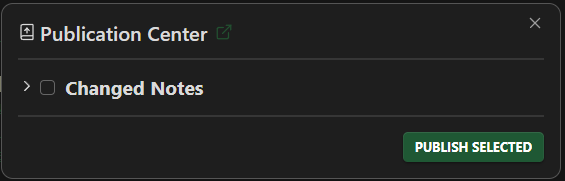
Changes will be publish after about a minute.